Daily Data Backup to S3: Automate & Secure Your Website Backups
Automate your WordPress backups with Daily Data Backup to S3—secure, off-site, and fully managed.
Why Daily Data Backup to S3 Matters
In today’s digital landscape, data loss can be catastrophic—whether due to server crashes, malware attacks, or human error. That’s why the Daily Data Backup to S3 feature is a game-changer for website owners and developers. This powerful, automated solution ensures your WordPress site is backed up every night and stored securely in off-site cloud storage, giving you peace of mind and rapid recovery options.
How It Works: A Seamless, Automated Process
Every day at midnight (00:00 UTC), the system initiates a fully automated backup sequence:
- Connects to your website’s Docker container.
- Exports the entire WordPress database as a .sql file.
- Packages all critical files—including themes, plugins, and media uploads—from the
wp-contentdirectory. - Compresses everything into a single
.tar.gzarchive to reduce size and speed up transfer. - Uploads the backup to your configured S3-compatible storage bucket.
- Cleans up temporary files on the server to conserve disk space.
What Gets Backed Up?
The system captures everything you need to fully restore your WordPress site:
- Database: All WordPress tables (exported as a complete .sql dump).
- Source Code & Assets: The entire
wp-contentfolder, including:- Themes
- Plugins
- Uploads (images, videos, documents, etc.)
Flexible Storage Compatibility
Thanks to its use of the standard S3 API, this feature works seamlessly with most major object storage providers:
- Amazon S3
- Cloudflare R2 (ideal for cost savings—zero egress fees!)
- DigitalOcean Spaces
- Vultr Object Storage
- Wasabi
- Backblaze B2
- MinIO (for self-hosted solutions)
Easy Configuration via Dashboard
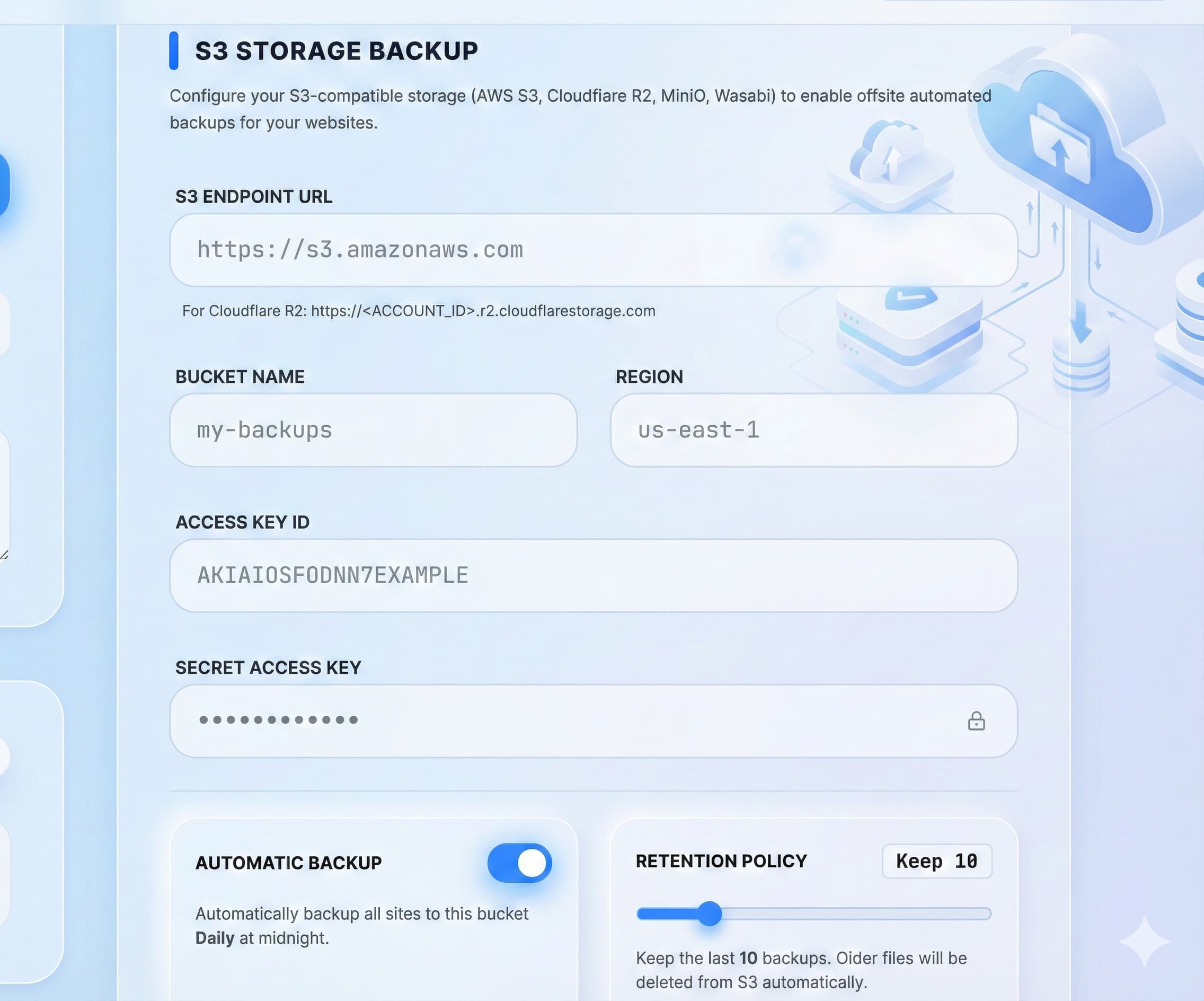
Setting up daily backups takes just minutes. In your user Dashboard, navigate to Profile → S3 Storage Backup and fill in:
- Endpoint URL: Your provider’s S3 API endpoint
- Bucket Name: The destination storage container
- Access Key & Secret Key: For secure authentication
- Automatic Backup Toggle: Enable or disable daily automation
- Retention Limit: Choose how many backups to keep (1–50)
Smart Retention = Cost Control
No more worrying about skyrocketing cloud bills. The system enforces a retention policy—automatically deleting older backups once your limit is reached. Keep the last 10, 30, or 50 days’ worth—your choice. This not only saves money but keeps your storage organized.
Key Benefits at a Glance
- ✅ Absolute Security: Off-site storage isolates backups from your live server.
- ✅ Zero Manual Effort: Fully automated—no scripts, cron jobs, or FTP downloads.
- ✅ Fast Recovery: Backups are clearly named by date and subdomain (e.g.,
example.com_2024-06-15.tar.gz). - ✅ Optimized Costs: Compression + retention = efficient storage usage.
- ✅ Universal Compatibility: Works with nearly any S3-compatible provider.
Final Thoughts
Daily Data Backup to S3 isn’t just a convenience—it’s a critical layer of your website’s disaster recovery strategy. With automated, encrypted, and off-site backups, you’re always just one restore away from getting back online, even after a total server failure.
Don’t wait for disaster to strike. Enable automated S3 backups today and secure your digital presence for tomorrow.